
Appearance
Installation
Unity version
Event Monitor is tested on Unity 6 LTS (6000.3.7f1, 6000.4.2f1) and Unity 2022.3.62f3. The package relies on Unity’s IL Post-Processor pipeline.
Compatibility matrix (tested)
| Unity version | Status |
|---|---|
6000.3.7f1 | Supported |
6000.4.2f1 | Supported |
2022.3.62f3 | Supported |
Install via UPM (copy-paste)
Recommended path is Unity Package Manager.
Option A: Package Manager UI
- Open Window -> Package Manager
- Click +
- Choose Add package from git URL...
- Paste your Event Monitor repository URL
Option B: manifest.json
Add the package to Packages/manifest.json:
json
{
  "dependencies": {
    "com.pawelca.eventmonitor": "https://github.com/your-org/eventmonitor.git"
  }
}
Replace only the repository URL with your actual source.
When installed this way, Event Monitor can declare and restore its own dependencies automatically (including Mono.Cecil).
Package layout
After install, the package typically contains:
- Runtime —
EventBus,EventRecord, optionalReflectionScanner. - Editor —
EventMonitorwindow, settings, demo scene tooling. - IL Post-Processors — assembly that rewrites user assemblies at compile time.
Exact folder names may vary by version; treat this documentation as product-level guidance.
Dependency: Mono.Cecil (automatic in UPM flow)
The IL post-processor depends on Mono.Cecil:
com.unity.nuget.mono-cecil(for example1.11.6)
For UPM package installation, this dependency should be resolved automatically by package.json. If you use legacy asset export/import, see Import checklist.
Which assemblies get instrumented?
The post-processor does not rewrite every DLL in your project. Typical user script assemblies (for example Assembly-CSharp and many custom asmdef assemblies) are candidates. Unity engine, Editor, system, and Event Monitor’s own assemblies are skipped to avoid recursion and noise.
If your gameplay code lives in a custom asmdef, that assembly is usually still processed as long as it is allow-listed by the tool’s gate and recording is enabled. See ILPP diagnostics and settings and IL patterns and limitations.
Verify instrumentation
After installation:
- Open Window → Event Monitor and enable Record.
- Enter Play Mode and trigger a known
event +=/?.Invoke()path. - Confirm SUB / INVOKE rows appear.
If nothing appears, use Troubleshooting & FAQ and optional ILPP diagnostics.
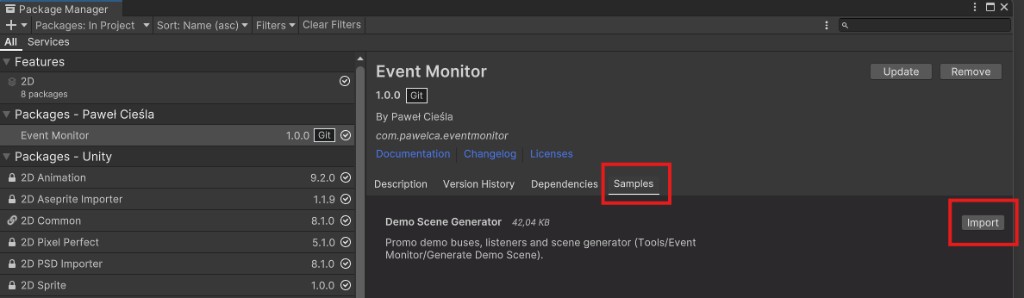
Import Demo Scene sample (Package Manager)
To enable Tools/Event Monitor/Generate Demo Scene:
- Open Window -> Package Manager
- Select Event Monitor
- Open the Samples tab
- Click Import on Demo Scene Generator
Next step
Continue with Quick Start.
If you imported Event Monitor via asset export into another project, use Import checklist.